
Open source Large Language models are increasingly becoming viable alternatives to the closed source models that are available today. The first step towards understanding whether a model is a fit for your use case is to quickly get it up and running on your laptop or your machine. This article goes into a 5 minute setup guide for Ollama.
Ollama has made it easiest by far by providing a simple lightweight, extensible framework for building and running language models on the local machine. It provides a simple API for creating, running, and managing models, as well as a library of pre-built models that can be easily used in a variety of applications.
With ollama you can run Llama 3.3, DeepSeek-R1, Qwen 3, Mistral, Gemma 3, and other models, locally.
- Steps to install ollama in your machine:
Whether you are using mac , linux or windows operating system ollama supports all .
The below steps shown are done in macOS , but similar approach can be used in other operating system.
Visit https://ollama.com/.
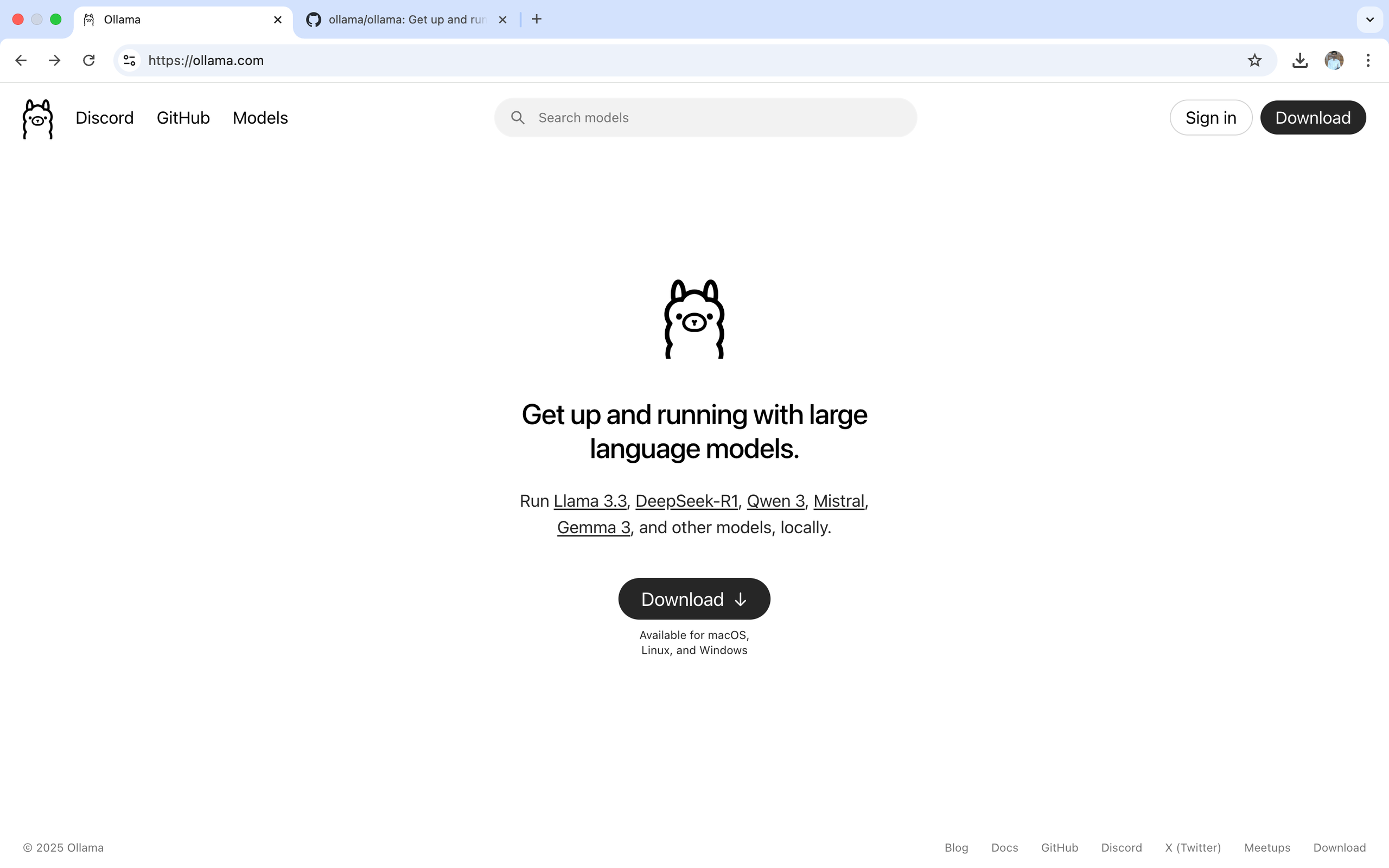 ollama website
-
Click on the download button a zip file ollama-darwin.zip will be download shortly.
-
Go to the downloads folder (or where the zip file is saved) , unzip the file you will see the ollama application extracted.
-
Go ahead and move it to Applications
After successfully moving the ollama application to Application click on ollama. You will be prompted to install ollama.
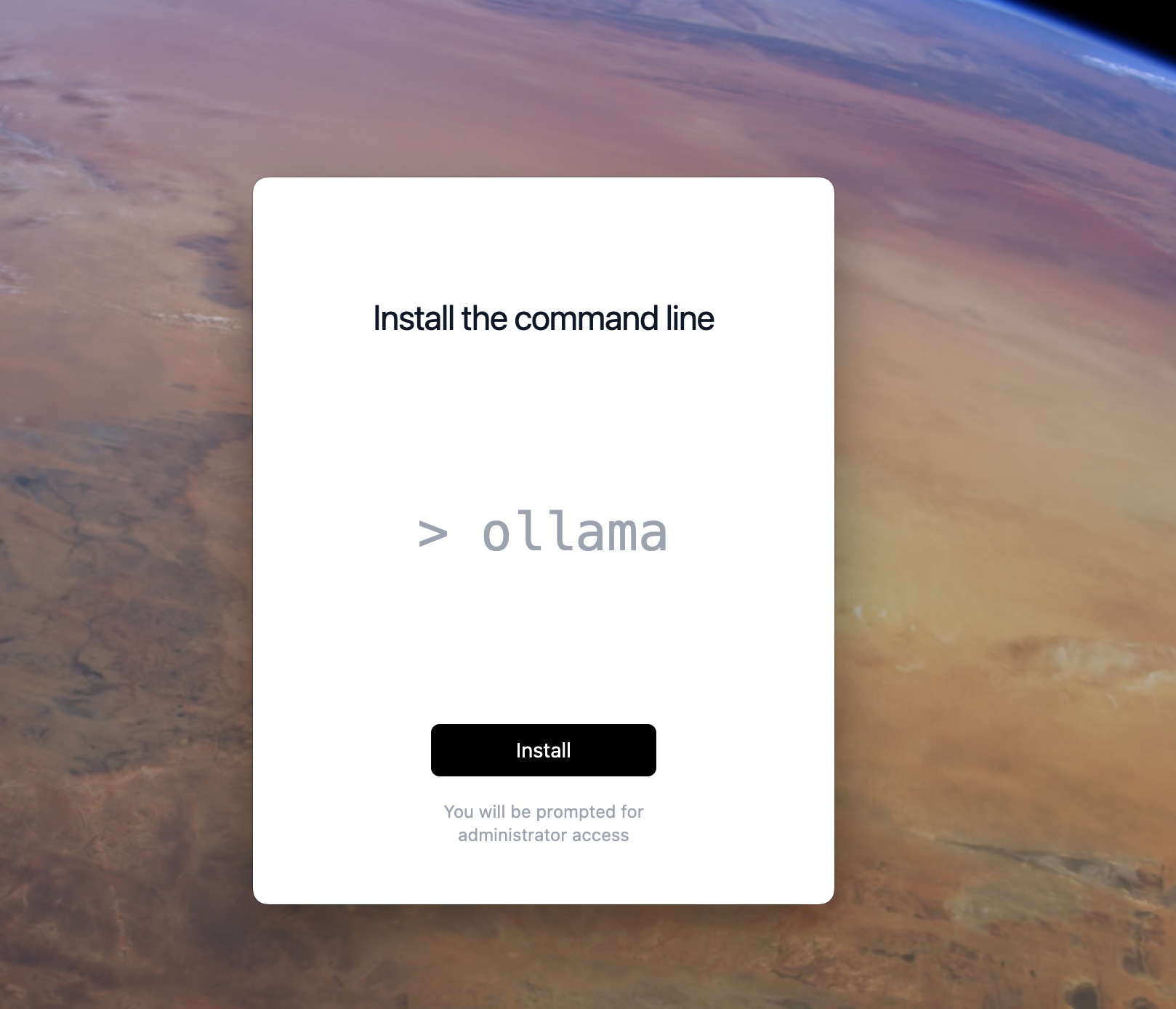 After download is complete!
- Make sure you have admin rights to you system as you will be prompted to validation that you are admin .
After the above steps are successful, you can now run any open source model in your machine.
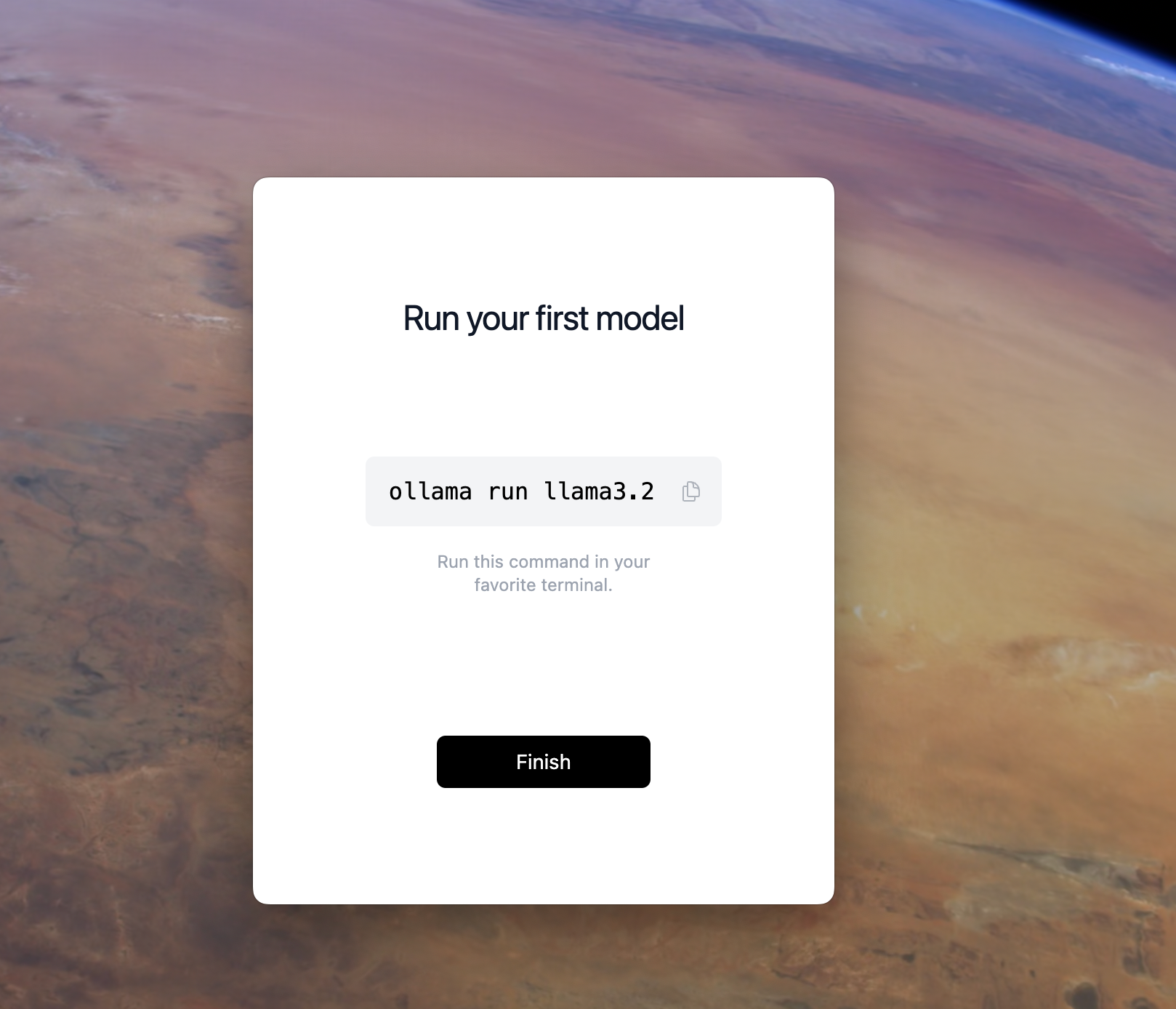 How to run a model !
Lets try it out!!
- Open a terminal and type.
ollama run <model name>
After successful run (might defer based on model):
 Downloading Qwen3!!
Congratulations !! you have an AI running in your machine!
Example:
 Running Qwen3!
Tip !
\# use below command to exit
/bye
References:
Github : https://github.com/ollama/ollama
Ollama : https://ollama.com/