Short answer: a pub/sub pipeline lets your app hand off slow work instead of doing it while the user waits. Your app (the publisher) sends a message to a topic. One or more workers (the subscribers) each read from their own subscription and do the heavy lifting in the background. On Azure, you build this with Service Bus: create a namespace on the Standard tier, add a topic and a subscription, then use the azure-servicebus Python package to send and receive messages.
 Data pipeline
Most applications today have jobs that are too slow to run while a user waits: processing a file, calling an AI model, sending a batch of emails, syncing data to a warehouse. The usual answer is to separate that work from your core application and process it in the background, in a way that can scale. A pub/sub (publish/subscribe) architecture is one of the simplest ways to do that.
What changed since the original post (2024): we fixed two bugs in the sample code, added a diagram of how the pieces connect, and added the passwordless sign-in option that Microsoft now recommends. We also added a section on retries and dead-lettering, plus an FAQ.
How does pub/sub work?
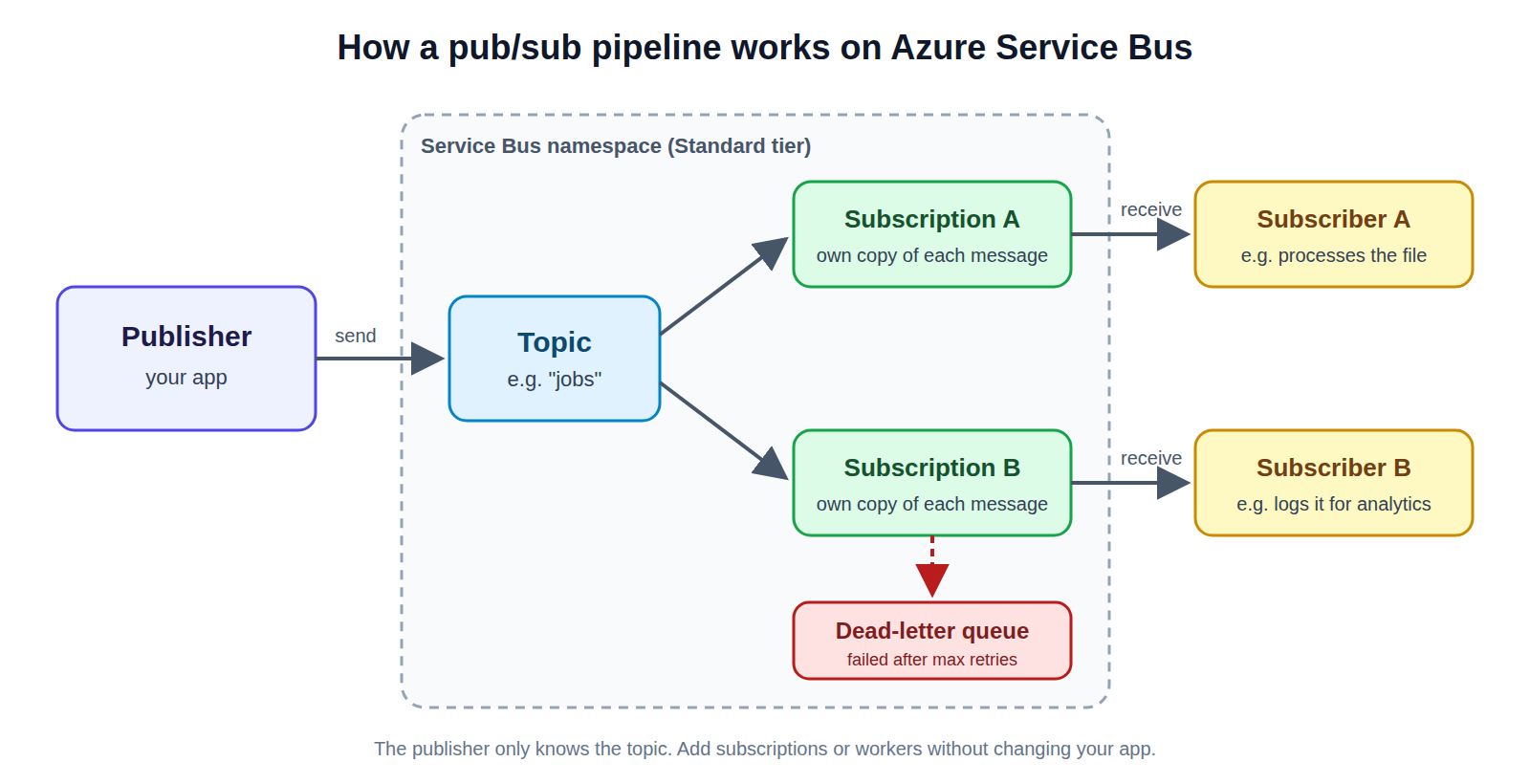 Diagram: a publisher sends messages to a Service Bus topic, each subscription gets its own copy, and a subscriber reads from each subscription. Failed messages go to a dead-letter queue.
A publisher sends to a topic. Every subscription gets its own copy of each message.
Diagram: a publisher sends messages to a Service Bus topic, each subscription gets its own copy, and a subscriber reads from each subscription. Failed messages go to a dead-letter queue.
A publisher sends to a topic. Every subscription gets its own copy of each message.
The idea is simple:
- A topic holds messages under a name, for example
jobs. - A publisher pushes messages to the topic. It doesn't need to know who will process them.
- A subscription is a queue attached to the topic. Every subscription gets its own copy of every message.
- A subscriber reads messages from one subscription and processes them.
Because the publisher and subscribers only share the topic, you can add more workers when the load goes up, or add a new subscription for a new kind of processing, without touching your app.
Queue or topic? A queue delivers each message to one consumer. A topic delivers a copy to every subscription. If only one kind of worker will ever process your messages, a queue is enough. If you expect more than one (say, one worker that processes a file and another that logs it for analytics), use a topic.
Which services offer pub/sub?
The most popular options are Apache Kafka, Google Cloud Pub/Sub, and on AWS, Amazon SNS paired with SQS queues. In this article, we use Azure's pub/sub service, Azure Service Bus.
Step 1: Create a Service Bus namespace
Sign in to the Azure portal and search for Service Bus.
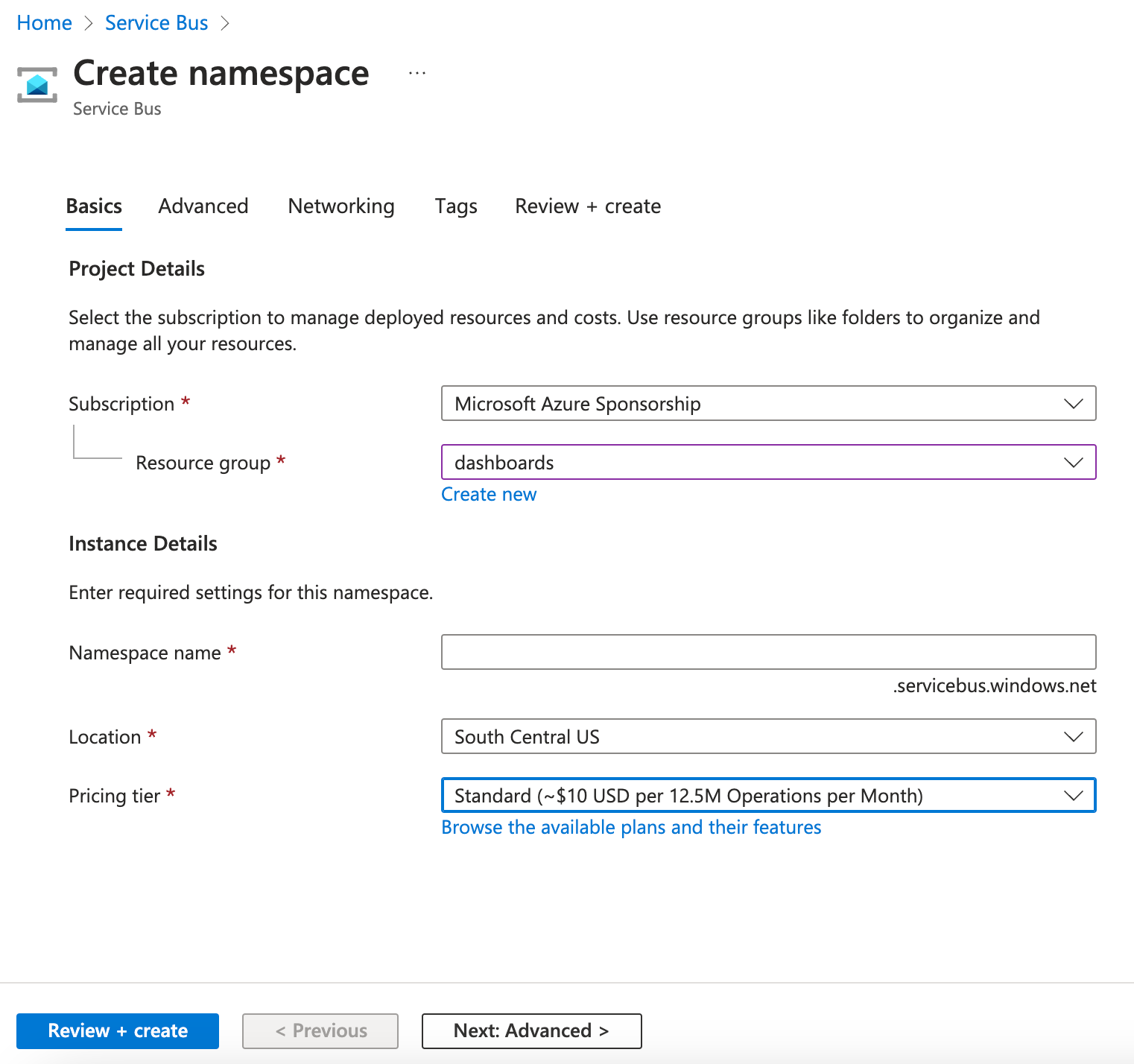 Service Bus namespace in the Azure portal
Service Bus namespace
Service Bus namespace in the Azure portal
Service Bus namespace
Create a namespace on the Standard pricing tier. The Basic tier doesn't support topics.
Step 2: Create a topic
Inside your namespace, create a topic.
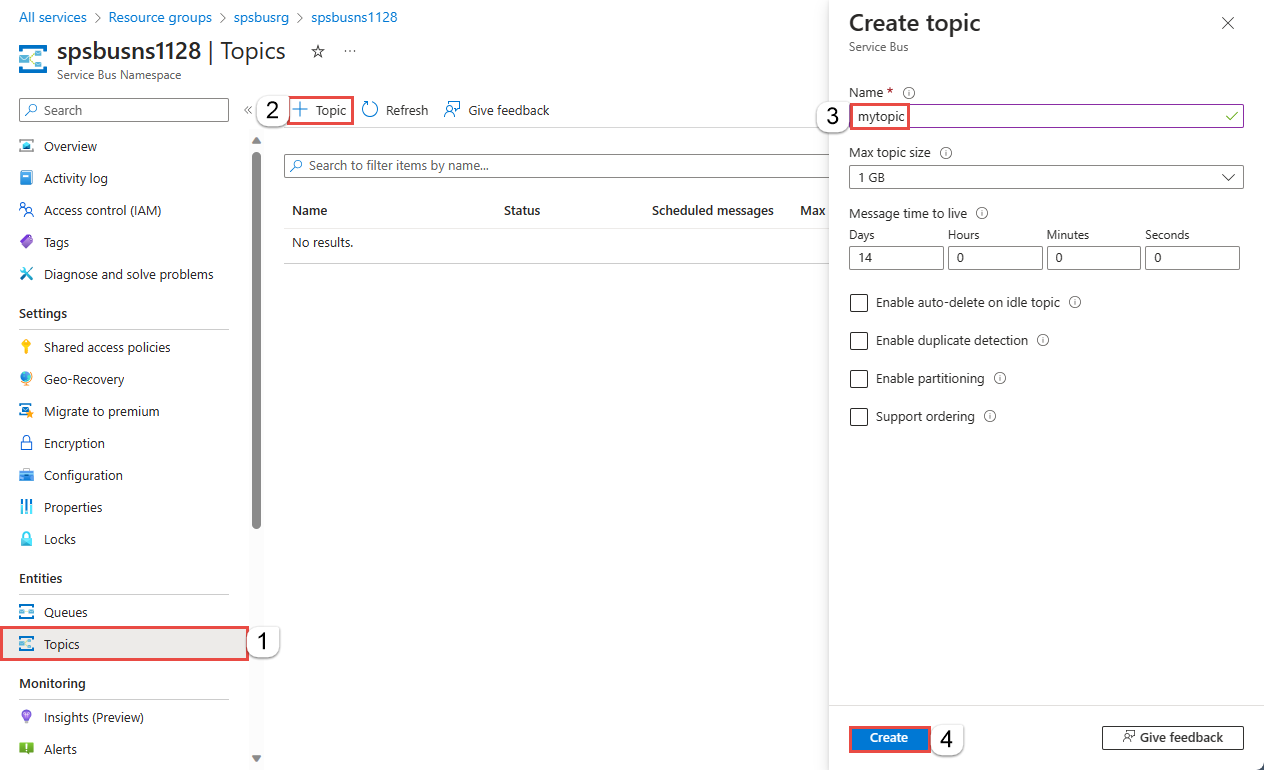 Creating a topic in the Service Bus namespace
Topic
Creating a topic in the Service Bus namespace
Topic
Step 3: Create a subscription
Now create a subscription for the topic.
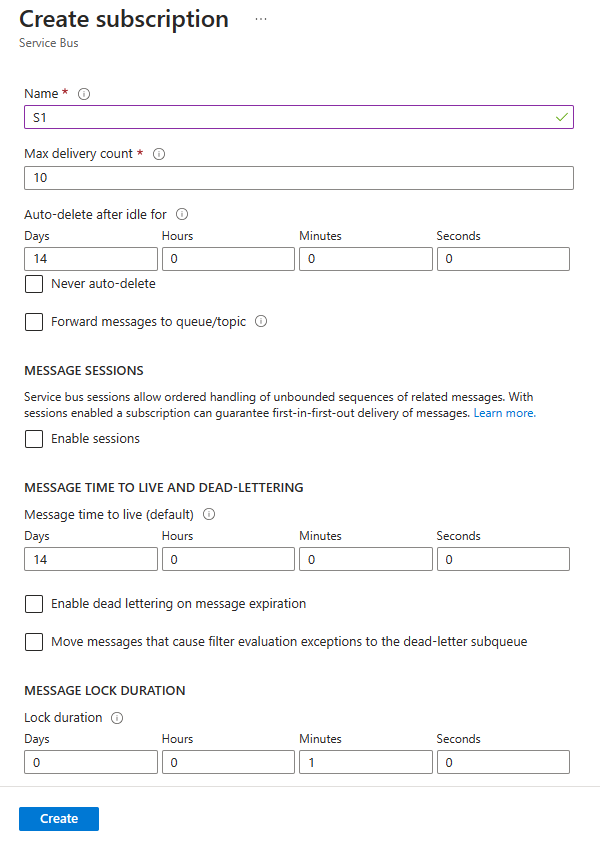 Creating a subscription for the topic
Subscription for the topic
Creating a subscription for the topic
Subscription for the topic
Two settings are worth a look here:
- Message lock duration: how long a subscriber can hold a message before Service Bus assumes it failed and makes it available again. The default is 1 minute and the maximum is 5 minutes. For longer jobs, renew the lock from your code (shown in Step 6).
- Max delivery count: how many times Service Bus will try to deliver a message before moving it to the dead-letter queue. The default is 10.
Step 4: Get access to the namespace
You have two options:
- Connection string (quickest for a first test): in the portal, open Shared access policies and copy the primary connection string.
- Passwordless (recommended for real apps): give your account or app the Azure Service Bus Data Owner role (or the narrower Data Sender and Data Receiver roles), and sign in with Microsoft Entra ID. No secret sits in your code.
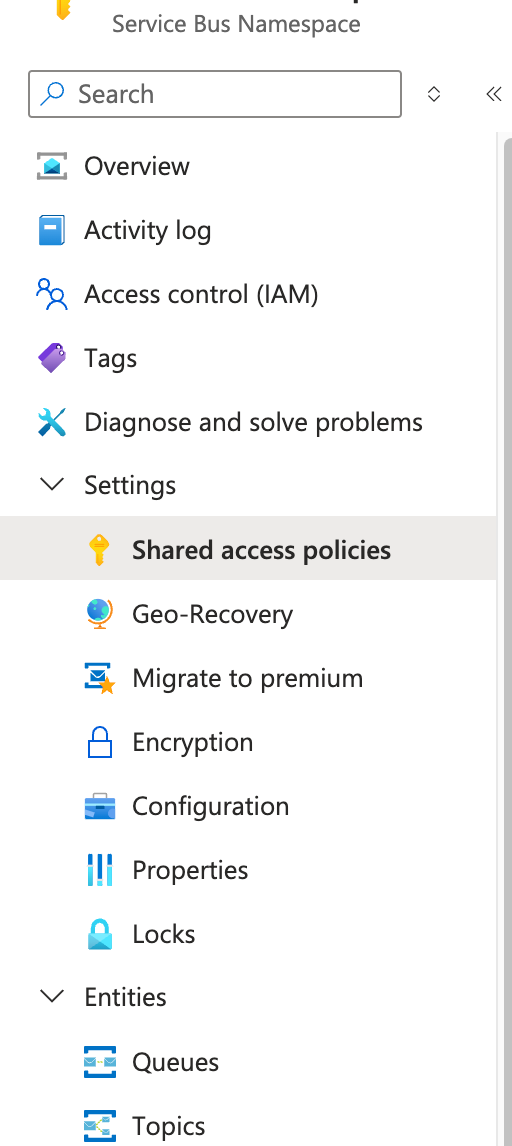 Access keys for the Service Bus namespace
Access key
Access keys for the Service Bus namespace
Access key
Install the Python packages:
pip install azure-servicebus azure-identity
The examples below use a connection string. To go passwordless instead, create the client like this:
from azure.identity import DefaultAzureCredential
from azure.servicebus import ServiceBusClient

client = ServiceBusClient("your-namespace.servicebus.windows.net", credential=DefaultAzureCredential())
Step 5: Publish messages to the topic
This script sends a list of jobs to the topic in one batch. Save it as publisher.py:
import json
from azure.servicebus import ServiceBusClient, ServiceBusMessage

CONNECTION_STR = "YOUR_CONNECTION_STRING"
TOPIC_NAME = "YOUR_TOPIC_NAME"


def publish(jobs, topic_name=TOPIC_NAME):
    """Send a list of jobs (dicts) to a Service Bus topic in one batch."""
    with ServiceBusClient.from_connection_string(CONNECTION_STR) as client:
        with client.get_topic_sender(topic_name=topic_name) as sender:
            batch = sender.create_message_batch()
            for job in jobs:
                batch.add_message(
                    ServiceBusMessage(json.dumps(job), content_type="application/json")
                )
            sender.send_messages(batch)


if __name__ == "__main__":
    publish([{"job_id": 1234, "process": "some_text_that_needs_processing"}])
Sending in a batch is faster than one message at a time. If a batch gets too big, add_message raises an error, so for very large lists, send in chunks.
Step 6: Process messages with a subscriber
This worker keeps listening to the subscription and processes jobs as they arrive. Save it as subscriber.py:
import json
from azure.servicebus import AutoLockRenewer, ServiceBusClient

CONNECTION_STR = "YOUR_CONNECTION_STRING"
TOPIC_NAME = "YOUR_TOPIC_NAME"
SUBSCRIPTION_NAME = "YOUR_SUBSCRIPTION_NAME"


def process(job):
    # Your long-running work goes here.
    print("Processing job", job["job_id"])


def run():
    # Keeps renewing the message lock for up to 1 hour, for long jobs.
    renewer = AutoLockRenewer(max_lock_renewal_duration=3600)
    with ServiceBusClient.from_connection_string(CONNECTION_STR) as client:
        with client.get_subscription_receiver(
            topic_name=TOPIC_NAME,
            subscription_name=SUBSCRIPTION_NAME,
            auto_lock_renewer=renewer,
        ) as receiver:
            while True:
                for msg in receiver.receive_messages(max_message_count=10, max_wait_time=30):
                    try:
                        job = json.loads(str(msg))
                        process(job)
                        receiver.complete_message(msg)
                    except (ValueError, KeyError) as e:
                        # Bad message: retrying won't help, so park it.
                        receiver.dead_letter_message(
                            msg, reason="invalid-payload", error_description=str(e)
                        )
                    except Exception:
                        # Temporary failure: release it so it can be retried.
                        receiver.abandon_message(msg)


if __name__ == "__main__":
    run()
Run python subscriber.py in one terminal and python publisher.py in another. You should see the subscriber print Processing job 1234.
And voilà, you have a working pub/sub data pipeline!
What happens when a message fails?
Service Bus gives you a few ways to handle failures without losing data:
complete_messageremoves the message once it's processed successfully.abandon_messagereleases the message so it can be delivered again, to this worker or another one.- Lock expiry: if your worker crashes or takes longer than the lock duration, the message becomes available again automatically.
- Dead-letter queue: after the max delivery count is reached, or if you call
dead_letter_message, the message moves to the subscription's dead-letter queue. You can inspect it there and replay it later.
Because a message can be delivered more than once, make your process function safe to run twice for the same job. For example, check whether job_id has already been handled before doing the work.
Common problems
- "Topics are not supported": your namespace is on the Basic tier. Upgrade it to Standard.
- Unauthorized errors with passwordless sign-in: the role assignment is missing, or hasn't taken effect yet. Role changes can take a few minutes.
- The same job runs twice: the job took longer than the lock duration. Use
AutoLockReneweras in Step 6, and make the job safe to repeat. - Messages pile up in the dead-letter queue: open it in the portal (Service Bus Explorer) to see the reason and error description on each message.
FAQ
What is a pub/sub pipeline? It's a way to connect parts of a system through messages. Publishers send messages to a topic, and subscribers receive them. Neither side needs to know about the other, so each can scale on its own.
Do I need the Premium tier? No. Standard supports topics and subscriptions and is fine for most workloads. Premium adds dedicated capacity, larger messages and network isolation for heavier production use.
How is Azure Service Bus different from Azure Event Hubs? Service Bus is built for business messages that must each be processed reliably, like jobs and orders. Event Hubs is built for very high volumes of event data, like logs and telemetry, that are read as a stream.
Can I use this pattern for AI workloads? Yes. Calling a large language model or processing documents is slow, which makes it a good fit for background workers. Put each request on a topic and let subscribers do the work.
References
- Microsoft: Get started with Service Bus topics and subscriptions (Azure portal)
- Microsoft: Send and receive messages with topics and subscriptions (Python)
- Microsoft: Message transfers, locks and settlement
Related reading: Batch processing with large language models
Want help building data pipelines that scale? Talk to Newtuple.